


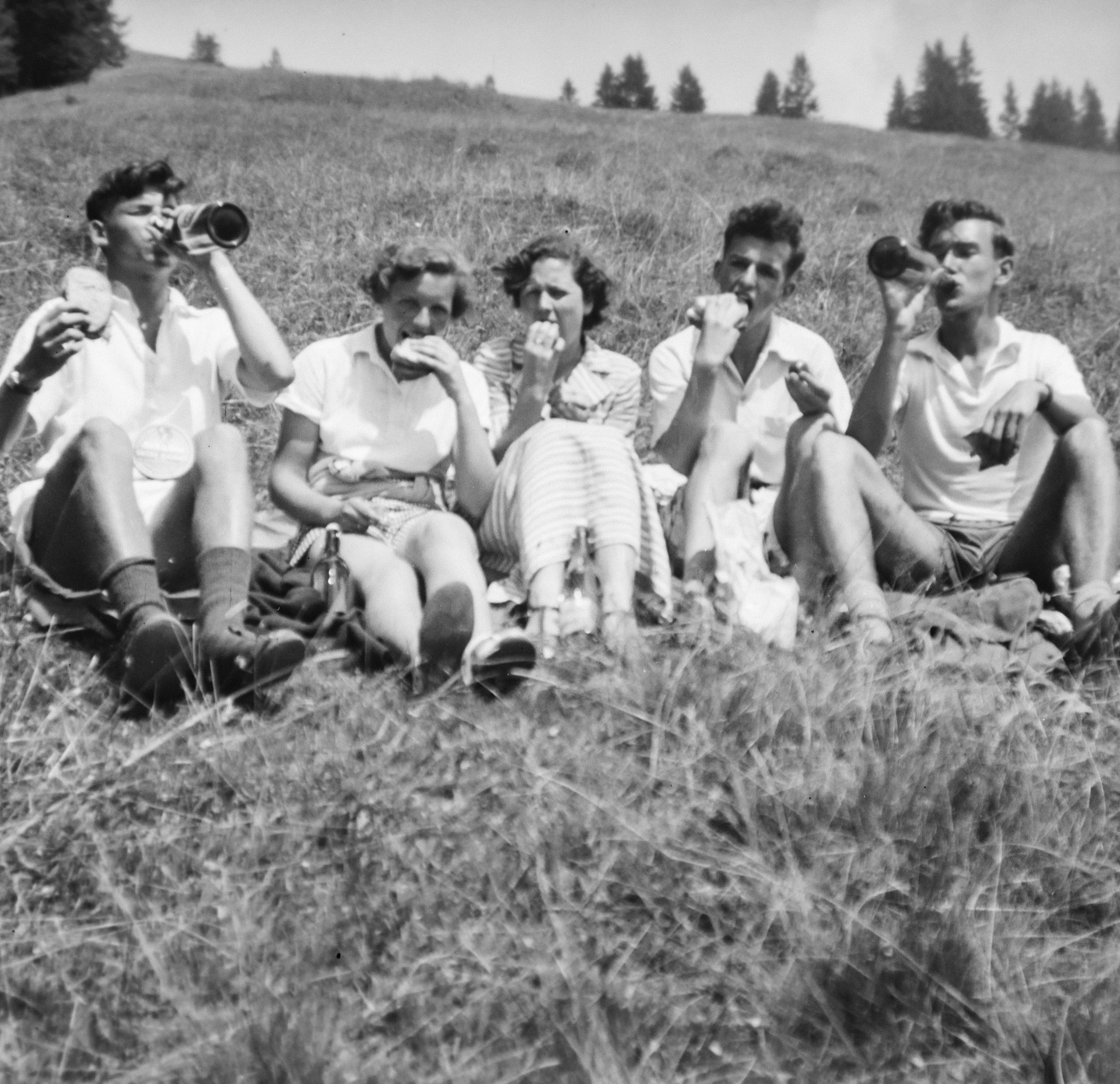
Physical photos wear out over time. Even with good storage, light, humidity, and handling can cause damage. This leads to fading, scratches, tears, and color changes. Eventually, the important details start to fade too.
Digitization gives you two clear benefits. One, you get a backup copy. If the physical photo is lost or damaged, the digital version remains. Two, it opens up restoration options you can’t do with the original alone. You can clean up scratches, fix fading, sharpen blurry areas, and add color to black-and-white images.
So who actually needs these tools? The answer covers more than just families with old albums. We’ll break that down next, then compare six tools to help you find one that fits your needs.
Who Needs Photo Digitization Tools?
People often ask who really needs photo digitization software. The answer might surprise you — it reaches well beyond just family historians.
Families and Genealogists
If you’re responsible for the family photo archive, these tools can transform the way you handle old images. They turn fragile prints stored in boxes into clear digital files ready to be shared. Genealogists depend on them to restore ancestor photos for trees and historical documentation.
Artists and Creative Professionals
Graphic designers use these tools. So do photographers and artists. Some are just cleaning up their own archives. Others pull restored vintage images into new projects. And a few offer restoration services to clients for extra income.
Historians and Archivists
Museums and historical organizations rely on advanced digitization to protect cultural records. It lets them preserve important images so future generations can access them without ever risking damage to the originals.
Anyone with a Smartphone
You don’t need to be a professional to benefit. Many people simply want to rescue a faded wedding photo, repair a torn portrait, or fix scratches on childhood pictures. These tools make that kind of restoration quick and accessible from a phone.
No matter your situation, the right app can make a big difference. Here are six of the best ones to consider.
Top 6 Tools Compared
Not all photo restoration tools work the same way. Some are mobile apps built for quick fixes on the go. Others are web-based platforms designed for higher resolution outputs or batch processing. The six tools listed below cover a variety of methods, so you may choose the one that best suits your requirements and level of experience.
Renew Photo
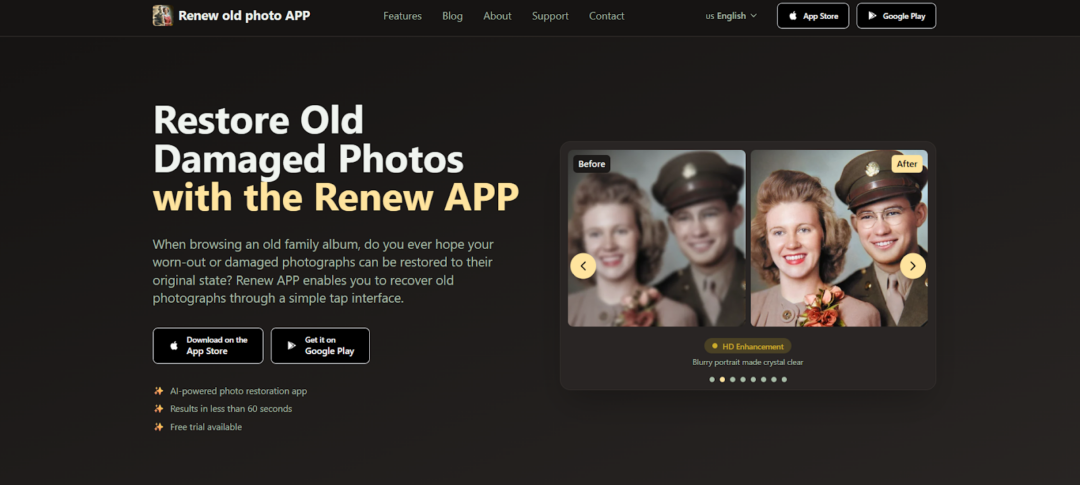
Renew Photo is designed as a mobile-first tool for restoring old and damaged photos with AI. Processing is quick — usually done in less than 60 seconds.
It tackles typical damage such as scratches, tears, faded colors, and bad lighting. You get to decide what kind of work you want before uploading: colorization, scratch removal, or an overall enhancement.
After that, the AI examines the photo, repairs the damaged parts, and produces a final image that keeps the original composition and natural feel intact.
The app also includes HD enhancement, photo combining, and animation that turns still images into motion. The interface works for people who don’t have editing experience, but there are manual adjustments if you want more control. Restored images download at print-quality resolution, so they work for digital sharing or physical prints.
Why Choose This Tool:
- AI-powered restoration completes in less than 60 seconds
- Available on both iOS and Android platforms
- Offers a free trial before commitment
- Includes advanced features like photo animation and combining
- Supports print-quality HD exports
RetroFix
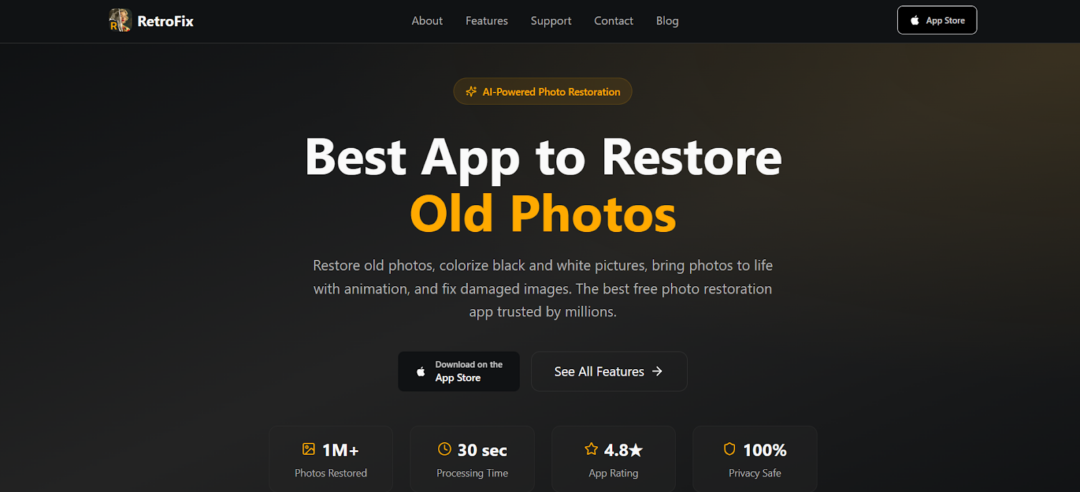
RetroFix brings a free mobile app focused on making old photo restoration quick and approachable. The tools handle damaged pictures, colorize black-and-white shots, sharpen fuzzy areas, and clean up scratches effectively. An animation option also turns static images into brief moving videos.
Everything follows a clean three-step flow: upload, restore, and download. Processing usually takes around 30 seconds per image, and privacy stays protected at every stage.
The app repairs tears and fading while reducing noise with AI. It further allows combining several photos into a single frame and improving facial clarity, all without complicated manual work. This makes it a practical zero-cost choice for everyday restoration tasks.
Why Choose This Tool:
- Completely free to use with no upfront cost
- 30-second average processing time
- Includes photo animation for motion effects
- Supports combining multiple images into one
- Privacy-safe with no hidden fees
Topaz Labs
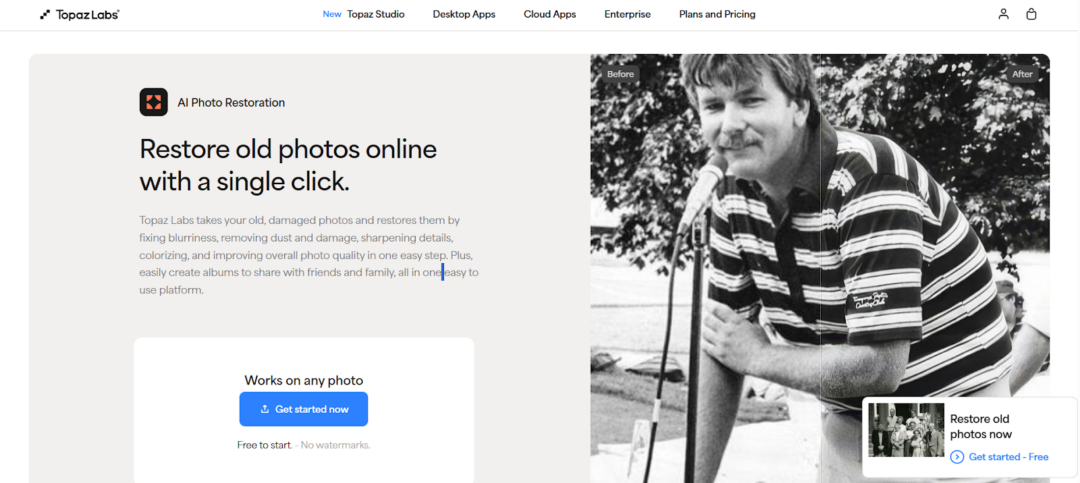
Topaz Labs is a browser-based restoration tool focused on professional-grade results. It handles blurriness, dust, scratches, and low resolution using dedicated AI models.
You upload an image and select settings for upscaling, face recovery, or damage repair. The tool recovers facial details, enhances low-resolution photos, and removes imperfections while keeping the original structure intact.
There’s a free trial available, and downloaded images have no watermark. Along with the web tool, Topaz Labs offers an iOS app for scanning physical photos, so you can digitize prints directly from your phone. The company has been in image editing for over twenty years. Their tools handle both large collections and individual photos. You can also create albums and share restored images within the platform.
Why Choose This Tool:
- Professional-grade AI with dedicated models for faces and low-resolution images
- Free to start with no watermark on downloads
- iOS app available for scanning physical photos
- Supports album creation for organized sharing
- Backed by 20+ years of industry experience
ImgUpscaler
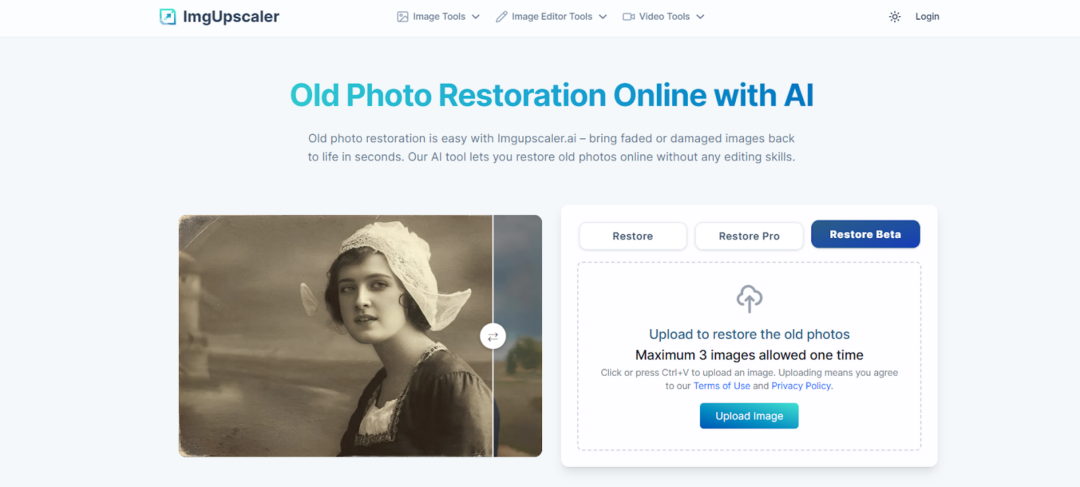
ImgUpscaler works as a browser-based tool that focuses on delivering high-resolution restored photos. It handles scratches, stains, and tears quite effectively, while rebuilding missing parts and staying true to the original look and feel of the image. Colorization comes built in, too, so black-and-white or faded shots can regain natural tones that actually match the era.
What stands out most is the output quality. The tool supports exporting all the way up to 16K resolution. That makes it especially useful for large prints or serious archiving. Since everything runs straight in the browser, there is no software to download or install. Basic restoration stays completely free as well.
Textures stay natural throughout the process. The results avoid that artificial, overly smooth look that often ruins restored photos.
Why Choose This Tool:
- Exports up to 16K resolution for large-format printing
- Preserves original texture and vintage character
- Browser-based with no installation required
- Includes era-accurate colorization
- Free workflow available for standard restoration
Pixelbin
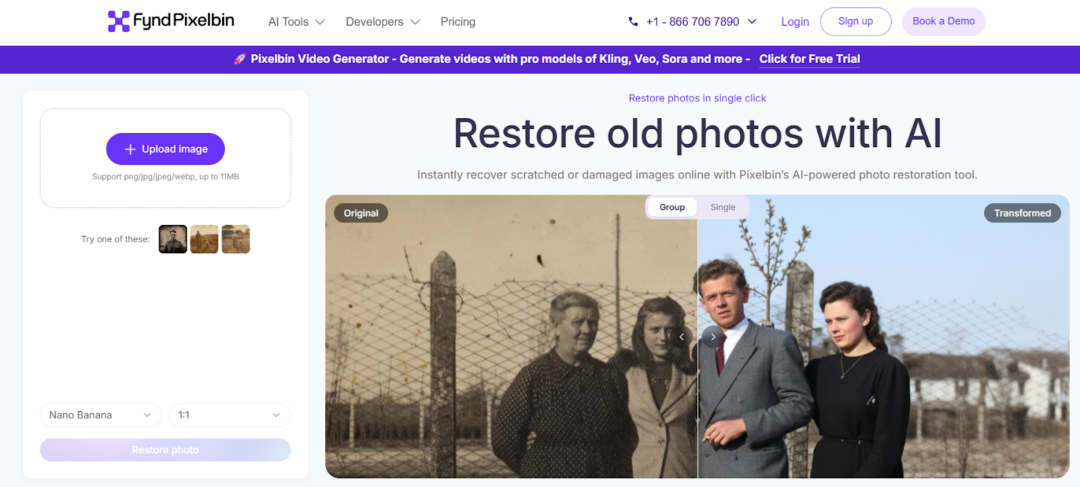
Pixelbin is a browser-based restoration tool. There’s no software to install. You upload a damaged photo—up to 10MB—and the AI scans for scratches, discoloration, fading, blur, and small tears. It fixes those issues automatically.
The tool also preserves the original image quality and resolution, so you don’t lose detail during the process. Before you download, you get a side-by-side preview to compare the restored version against the original.
If you have a larger collection, Pixelbin offers bulk restoration through an API. That lets you process multiple images at once, which saves time. The platform works with family portraits, wedding albums, and historical documents. You don’t need any editing experience. The workflow is one-click and fully automated. Outputs come in high definition, suitable for printing or digital sharing.
Why Choose This Tool:
- Bulk restoration available via API for large collections
- Side-by-side preview before download
- Preserves original resolution and natural details
- No editing skills required with one-click automation
- Supports URL upload for online images
PicWish
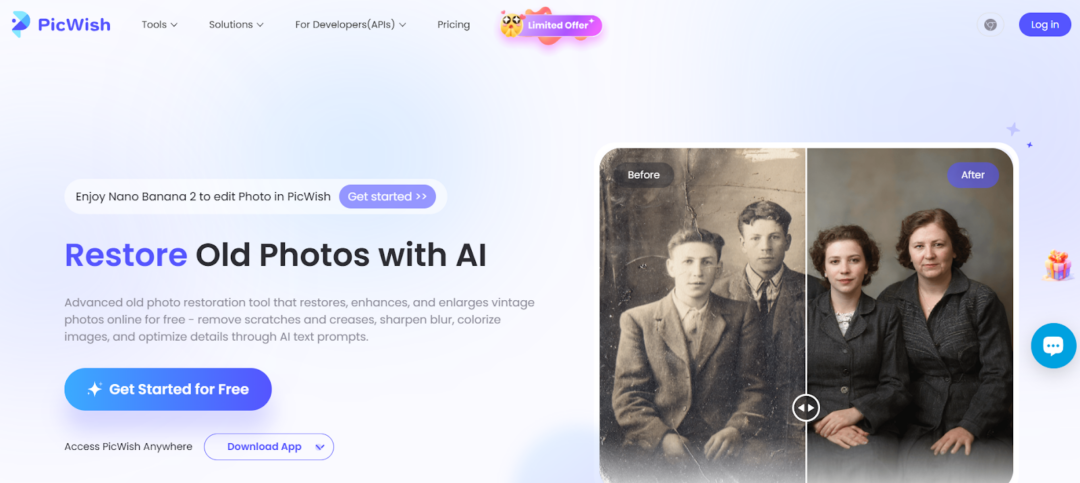
PicWish lets you choose how much repair work your photo needs. You pick mild, moderate, or severe damage levels, and the AI handles scratches, creases, blur, and noise based on that.
There’s also face enhancement to restore facial features. For black-and-white photos, one-click colorization is available. You can use text prompts to refine results afterward.
The tool also enlarges images up to 4x resolution and cleans up noise and ghosting. That’s useful if you’re printing photos or using them in presentations. The process runs automatically—upload, let the AI work, and download. No manual editing needed.
Why Choose This Tool:
- Adaptive repair with mild, moderate, and severe damage modes
- Advanced face enhancement for restoring facial details
- AI text prompts for post-restoration refinement
- Upscales images up to 4x resolution
- One-click colorization with realistic tones
Conclusion
Digitizing and restoring old photos comes down to preservation. Physical prints degrade over time from light, humidity, and storage. Without intervention, the details you want to keep eventually get lost.
The tools we’ve covered take different approaches. Some are mobile apps for quick fixes. Others are web-based platforms that give you more control. Which one makes sense depends on how damaged your photos are, what quality you need, and how many you’re processing.
Pick the tool that fits your needs, and you’ll have a digital copy that lasts.